The Most Boring Task in Your Business Is Quietly Killing Your Profits. Let's Fix It.
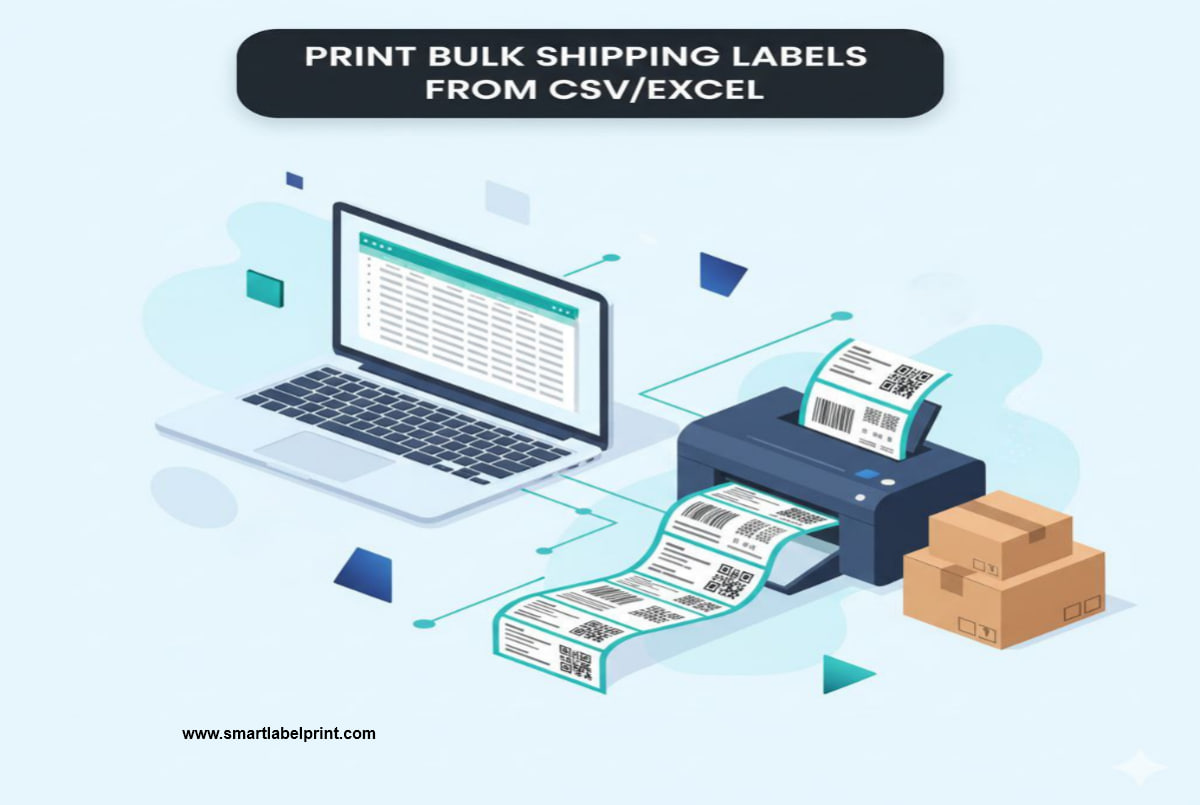
Alright, let's have a real heart-to-heart. What's the one task you procrastinate on every single day? The one that makes you sigh, roll your eyes, and think, "Ugh, not this again." If you're an e-commerce seller, I'll bet you a box of fresh Alphonso mangoes it's creating your shipping labels. It's the digital equivalent of doing the dishes—a thankless, repetitive chore that stands between you and the satisfying part of your job. And here’s the kicker: you're probably doing it completely wrong. And it's costing you a fortune.
Look, I'm Samir. I've been in the e-commerce game for over 5 years. I started by selling screen-printed t-shirts from a tiny room in Mumbai, where my "shipping station" was my bed and my "software" was Microsoft Word and a very patient printer. Today, I manage fulfillment for brands shipping thousands of orders a month from warehouses in both India and California. And the biggest lesson I’ve learned in all that time is this: your shipping process is where your profits go to die. It's a silent killer, bleeding you dry through wasted time, expensive supplies, and costly errors. A 2024 report from logistics analysts at ShipMatrix found that small businesses overspend on shipping by an average of 22% due to operational inefficiencies. That's insane. And it's almost entirely preventable.
So, forget what you *think* you know. This isn't a fluffy guide. This is the battle-hardened, street-smart playbook for creating shipping labels online. We're going to cover the 100% free methods that will take you from a stressed-out, copy-pasting amateur to a lean, mean, shipping machine. No paid software, no subscriptions. Just the exact workflows I've used to ship over two million packages. Let's plug the leak.
Why You Need to Ditch Word & Canva Immediately
Before we get into the right way, let's talk about the wrong way. If you are manually typing or copy-pasting addresses into a Word template or a Canva design, you need to stop. Today. Right now. You're not just being slow; you're actively taking on unnecessary risk.
Personal Horror Story #1: The Transposed Pincode (India, 2019). I was helping a friend with her burgeoning Shopify store. She was getting 30-40 orders a day. Her process? An intern would manually copy-paste each address into a Word template. During a big sale, the intern, swamped and tired, transposed two digits in a pincode for a big order going to Bangalore. The package went on a magical mystery tour of the Indian postal system. It took two weeks for Delhivery to finally get it sorted. The customer, who had bought the item for a wedding, was furious. She left a 1-star review that tanked my friend's product rating for a month. The cost of that one typo was easily over ₹20,000 in lost sales and brand damage. All because of a manual process.
Manual entry is the enemy. It's where errors are born. The entire goal of a professional shipping workflow is to *never* re-type an address. The data your customer enters at checkout should be the exact same data that ends up on the label, untouched by human hands.
The Foundation: Getting Your Data Out (The CSV Export)
The secret to all shipping automation is the humble CSV file (Comma-Separated Values). It's just a simple spreadsheet, but it's the universal language of e-commerce data. Every single platform, from Shopify and WooCommerce to Amazon and Flipkart, lets you export your unshipped orders as a CSV file. Find it. It's usually under 'Orders' -> 'Export'.
You’ll get a massive file with a million columns. Don’t panic. We only care about a few key ones:
- Customer Name (may be split into First Name and Last Name)
- Address Line 1
- Address Line 2 (for apartment numbers, etc.)
- City
- State/Province
- Pincode / ZIP Code
- Country
- Phone Number (CRITICAL for India)
- Order Number (useful for your own reference)
Your first task is a bit of digital housekeeping. Open this CSV in Excel or Google Sheets and clean it up. Delete all the columns you don't need. You want a clean, simple sheet with just the essential address information. Make sure the column headers are simple, like 'Name', 'Address', 'City', etc. This clean file is your source of truth.
Step 2: The Free Mail Merge Method (The Office Workhorse)
This is the classic, old-school method, and it works surprisingly well. It uses the 'Mail Merge' feature that’s been built into Microsoft Word and Google Docs for decades. Most people have never touched it, but it’s a hidden superpower.
The Workflow (using MS Word as an example):
- Prepare Your Template: Open a new, blank Word document. Go to the 'Layout' tab and set up your page. If you’re using an A4 sticker sheet with four labels, you can create a 2x2 table that fills the page. Each cell of the table will be one label. Design the first cell exactly how you want your label to look. Leave space for your return address, your logo (you can just paste an image), and the recipient's address block.
- Connect Your Data: Go to the 'Mailings' tab. Click 'Start Mail Merge' -> 'Labels'. This opens a wizard, but you can also just do it manually. Click 'Select Recipients' -> 'Use an Existing List...' and choose the clean CSV file you created in Step 1.
- Insert Merge Fields: Now, click inside the recipient address block in your template. Go back to the 'Mailings' tab and click 'Insert Merge Field'. You’ll see a list of your column headers ('Name', 'Address', 'City', etc.). Click on them one by one to insert them into your template. It will look something like this:
«Name»
«Address»
«City», «State» «Pincode»
Ph: «Phone» - Update All Labels: Once your first label template is perfect, click the 'Update Labels' button. This will magically copy your design and merge fields into all the other cells of your table.
- Preview and Finish: Click 'Preview Results'. Word will now show you the actual data from your spreadsheet filled into the labels. You can scroll through to make sure it looks right. Once you're happy, click 'Finish & Merge' -> 'Edit Individual Documents...'. This will create a new Word document with all your finished labels, one for each row in your spreadsheet.
- Print: You can now print this final document onto your A4 sticker sheets. And for the love of all that is holy, as I scream about in my printer guide, make sure you print at 100% scale or 'Actual Size'!
Pros: 100% free if you already have MS Office or use Google Docs. Powerful and reliable. For a full-blown tutorial, Microsoft's own guide is actually pretty good.
Cons: A bit clunky. The initial template setup can be finicky. And it still doesn't generate barcodes for you, which is a major downside.
Step 3: The Online Label Generator Method (The Modern, Easier Way)
Frankly, Mail Merge is a tool from the 90s. It works, but we can do better. This is where free, dedicated online label generators come in. These tools are built specifically for this workflow and often include barcode generation, which is a huge plus.
The Workflow (using a tool like SmartLabelPrint as an example):
- Select Your Label Type: Go to the tool. Choose the label size you need (e.g., 'Shipping Label' for A4 sheets, or a 4x6 thermal size).
- Download the Sample CSV: Every good bulk label generator will have a 'Download Sample' button. This is the most important step. Click it. It will give you a perfectly formatted CSV template with the exact column headers the tool needs (e.g., 'buyerName', 'address', 'sku', etc.).
- Paste Your Data: Open your exported order file from Step 1 and the sample CSV you just downloaded. Now, just copy the data from your order file and paste it into the correct columns in the sample template. This mapping process takes about 2 minutes, but it ensures the tool knows exactly what to do with your data. Save this new file.
- Upload and Generate: Go back to the tool and click 'Import CSV'. Upload the file you just prepared. The tool will instantly generate a perfectly formatted, print-ready PDF with a unique label for every single row in your spreadsheet, complete with scannable barcodes for your SKUs.
Personal Horror Story #2: The Barcode Blackout (USA, 2022). I was launching a new product and sending my first shipment to an Amazon FBA warehouse. I used a mail merge to create my labels but had to generate the FNSKU barcodes separately using a free font. I didn't test it properly. The font wasn't fully compliant. The barcodes were unscannable. Amazon couldn't check in my inventory. They charged me an 'unplanned prep service' fee of $0.40 per unit to manually re-label all 500 items. That's a $200 'stupid tax' because I didn't use a proper barcode generator. A dedicated label tool with built-in barcode generation, as I covered in my FBA Label Guide, would have prevented this.
Pros: Faster than mail merge. Automatically generates scannable barcodes. Provides a WYSIWYG (What You See Is What You Get) preview.
Cons: You have to spend 2 minutes mapping your data to the tool's template the first time you use it.
The Ultimate Bulk Shipping Label Cheat Sheet
Stop reading and start doing. Here’s your game plan.
| Your Daily Order Volume | Your Best Free Method | The Logic |
|---|---|---|
| 1-10 Orders | Manual Copy/Paste (but I'm judging you) | Honestly, at this volume, the time to set up a spreadsheet might not be worth it. But you should learn the CSV process anyway. |
| 10-50 Orders | Online Label Generator Method | This is the sweet spot. It's fast, free, generates barcodes, and is much less fiddly than Mail Merge. You'll save hours. |
| 50+ Orders | Online Label Generator + Thermal Printer | At this scale, you're a professional operation. You should be using a dedicated online tool and a thermal printer. Your time is too valuable to be messing with A4 sheets and scissors. |
Final Checklist: How to Not Screw This Up
Before you hit 'Generate' on that 200-label file, just run through this quick mental checklist.
- Did I clean my data? Removed extra columns, checked for obvious typos?
- Are the column headers correct? If using an online tool, do they match the sample template exactly? 'pincode' is not the same as 'Pin Code'. Computers are dumb. They need exact matches.
- Is the phone number there? For Indian sellers shipping with India Post or private couriers like Blue Dart, the phone number is not optional. It’s how the delivery agent contacts the customer. Missing it is a recipe for returns.
- Did I do a test print? Before you print 100 pages, print ONE label. Scan the barcode with a phone app. Does it read correctly? Is the address legible? Is everything aligned? Good. Now you can print the rest.
Look, making the switch from manual labeling to a bulk, CSV-based workflow is the single biggest productivity jump you can make in your e-commerce journey. It’s the moment you stop being an employee of your business and start being the owner. It frees up your most valuable resource—your time—to focus on the things that actually make you money: marketing, product development, and customer service. So stop the copy-paste madness. Export your orders, clean up that CSV, and use our bulk barcode generator to let the machines do the boring work for you. If you need custom QR codes for packaging, create those in bulk with our QR code generator.